
About How to Convert
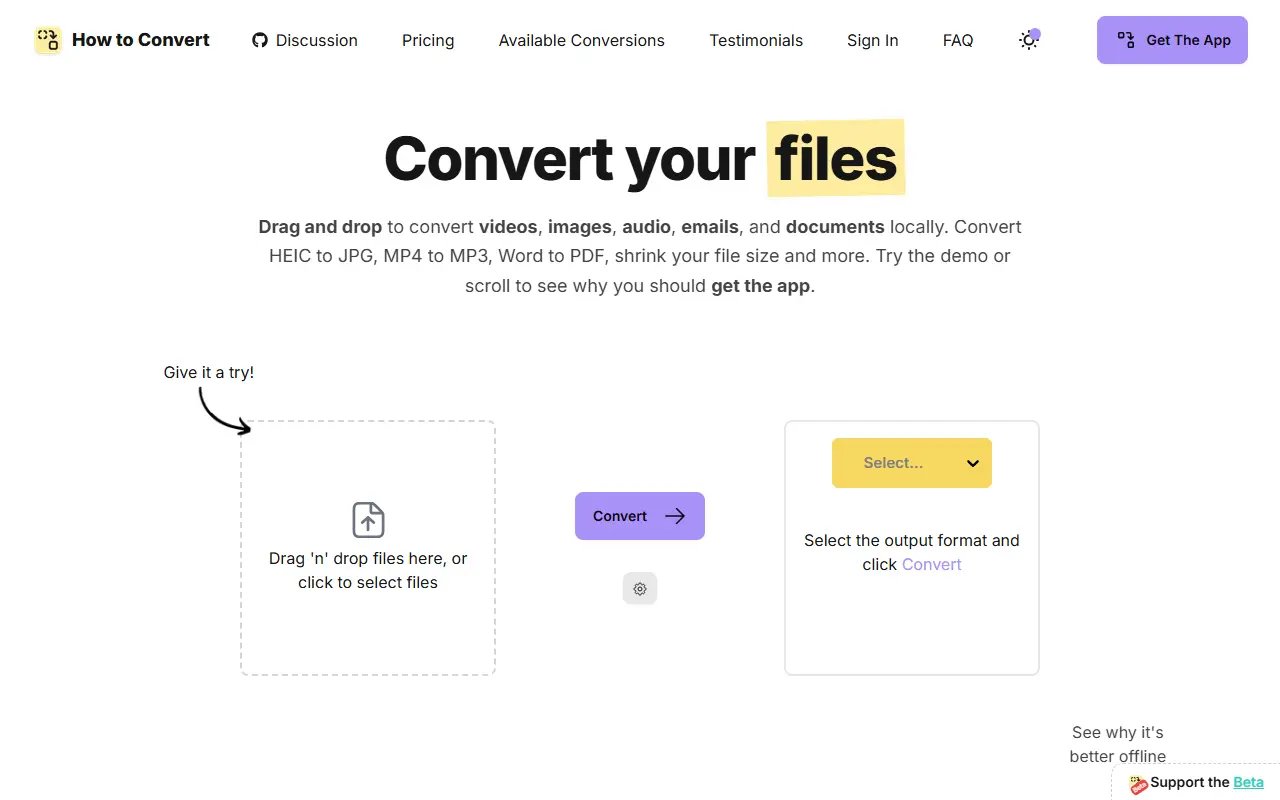
How to Convert is a local file converter: you drag in files, choose an output format and convert on your own computer, so nothing is uploaded to a cloud. The site lists 6,098 supported conversions across audio, video, image, document, email and subtitle formats, such as HEIC to JPG, MP4 to MP3 and Word to PDF.
Conversions can be direct, multi-stage through intermediate formats, or same-format changes to compression and quality, and some use macOS-specific tools in the Mac app. A browser demo converts files in the page without leaving your device, while the downloadable app handles offline conversions. Users quoted on the page mention avoiding ffmpeg and ImageMagick setups and restrictions on uploading work files.
The app runs on Mac, Windows and Linux. The site has discussion, pricing, conversion list, testimonials and FAQ pages, but pricing details are not part of the homepage text, so check the site for what a license costs.
Key features
- Local conversion with no file uploads
- Over 6,000 format conversions
- Audio, video, image and document formats
- Email and subtitle format conversion
- Compression and quality changes
- Apps for Mac, Windows and Linux
Good fit for
- Converting iPhone HEIC photos to JPG
- Converting sensitive documents without uploading them
How to Convert: questions and answers
- What is How to Convert used for?
- How to Convert is a desktop app for Mac, Windows and Linux that converts documents, video, images, audio, email and subtitles locally without uploading files. It is a good fit for converting iPhone HEIC photos to JPG and converting sensitive documents without uploading them.
- How much does How to Convert cost?
- Paid plans for How to Convert start at $29 as a one-time payment, and there is no free plan.
- Is How to Convert open source?
- No. How to Convert is proprietary (closed-source) software. In the Productivity category, open-source options include Zen Browser, Ungoogled Chromium and Brave Browser.
- Can I self-host How to Convert?
- Yes. Although How to Convert is closed source, it can be self-hosted on your own servers.
- What are some alternatives to How to Convert?
- Other SaaS products in the Productivity category include terrific.tools, Arazio For Mac and FixMyFiles.
Open-source alternatives to How to Convert
See all
Zen Browser
Productivity
Welcome to a calmer internet
MPL-2.0vs Google Chrome★ 45kUngoogled Chromium
Productivity
Google Chromium, sans integration with Google
BSD-3-Clausevs Google Chrome★ 28k
Brave Browser
Productivity
Brave browser for Android, iOS, Linux, macOS, Windows.
MPL-2.0vs Google Chrome★ 24k
Neko
Productivity
A self hosted virtual browser that runs in docker and uses WebRTC.
Apache-2.0★ 22k
Obtainium
Productivity
Get Android app updates straight from the source.
GPL-3.0★ 20k
ActivityWatch
Productivity
The best free and open-source automated time tracker. Cross-platform, extensible, privacy-
MPL-2.0vs RescueTime★ 19k
SaaS alternatives to How to Convert
See all
terrific.tools
Productivity
Privacy-first desktop file converter for Mac and Windows that converts over 2,000 file types offline
SaaS
Arazio For Mac
Productivity
Local-first Mac file converter that works from Finder with a radial menu of target formats
SaaS
FixMyFiles
Productivity
Free file converter for images, video and audio that runs on your device and never uploads your files
SaaS
Jollycat
Productivity
Native macOS file converter for images, video, audio, documents and PDFs that runs locally
SaaS
SignQuick
Productivity
Sign PDFs in your browser with no signup, plus an EU-hosted encrypted option with audit trails for teams
SaaS
TeraConvert
Productivity
Offline Mac file converter for 800+ formats with PDF text editing, background removal, compression and batch tools
SaaS